
Welcome to Everybody Reads!

Get your class reading in 4 simple steps. Start with our 13-minute About the platform video.

About Everybody Reads

Everyone starts here, whatever your role. Our About the platform video shows you how Everybody Reads works and how to use it with your class.

Who does this? Every teacher 13 mins

How to use Everybody Reads Video · 13:04

A full tour of the platform: setting up, adding pupils, reading and tracking progress.
Cover of the step-by-step guide Prefer to read? Open the step-by-step guide PDF · 8 min read · opens in Google Drive (opens in a new tab)

Where should I start?

Pick the option that sounds like you.

  • I'm setting up the administrator role for my school

    You'll invite the rest of your teaching staff and set up your class names. Watch the About the platform video above, then follow all 4 steps.

    Start at Step 1
  • I've received an invite to join my school on Everybody Reads

    Accept the invite in your email to get started, then watch the About the platform video above to learn more. Go to Step 2 to set up your class. Your class may already have some student details added, so check what's there before adding more.

    Go to Step 2

Get ready in 4 steps

Work down the path. Each step tells you who does it and how long it takes.

  1. Who does this? Coordinator 3 mins

    Step 1: Create your school

    Set up your school's location, language, term dates and first class. The first person to sign up becomes the account administrator.

    Creating your school Video · 2:49

    Sign up and fill in your school details, term dates and first class.

    Asked our team to set you up? You can skip to Step 3.
  2. Who does this? Coordinator & every teacher 2 mins

    Step 2: Invite teachers and add your class

    Invite colleagues and add your students. Usernames and passwords are created automatically, and pupils don't need an email address.

    Invite teachers, create classes and add students Video · 2:15

    Send invites to colleagues, then build your class list in a couple of minutes.

    Rather we did it for you? Send us your class list and we'll set you up within one business day.

    Send us your class list
  3. Who does this? Every teacher 1 min

    Step 3: Share student logins

    Print or display a login sheet with a QR code for each pupil, so they can sign in quickly.

    Accessing student passwords Video · 0:46

    Find and print your class login sheet with a QR code for every pupil.
  4. Who does this? Every teacher 9 mins

    Step 4: Start reading and see progress

    The first time pupils log in, they create their own avatar. Then they start reading, and you can watch their progress on your dashboard.

    Creating your avatar Video · 0:50

    What pupils see the very first time they log in.

    The student reading experience Video · 3:46

    How pupils choose, read and enjoy books matched to their level.

    Student data: accessing & understanding Video · 3:57

    Read your dashboard and see how each pupil is getting on.
  5. You're all set. Happy reading!

    Next up Want to link reading to your class topic? See the Book Generator section of the step-by-step guide (PDF, opens in Google Drive) (opens in a new tab).

The evidence

2.6x faster reading gains

In an independent study by the University of Strathclyde, students using Everybody Reads showed 2.6x faster reading gains than typical progress over the same period (443 students, January–April 2026).

Read the research findings (opens in Google Drive) (opens in a new tab)
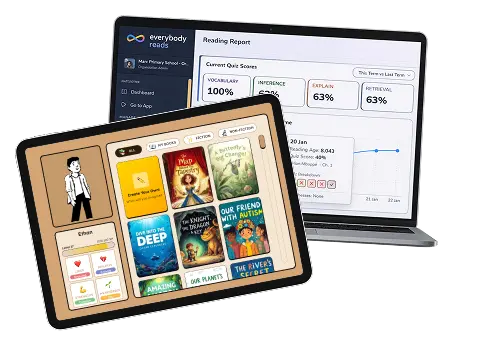
Everybody Reads on a tablet and a laptop: the pupil book library on the tablet and a teacher's reading report with quiz scores on the laptop

Stuck? Quick answers

Tap a question to see the answer.

My invite has expired.

Invites last 7 days. Ask your coordinator to open Teachers and click Resend in the Action column.

A pupil can't log in.

On your Class page, click Passwords to download a login sheet with QR codes. For one pupil, open their profile → Login Details → Unlock Credentials.

A pupil's reading level looks wrong.

Open their profile → Reading Age → Update Reading Age → Save New Target. The platform also adjusts automatically over the first few books.

A teacher needs a password reset.

The coordinator opens the teacher's profile, clicks ⋯ and chooses Reset Password.

Do pupils need email addresses?

No. Usernames and passwords are generated for them.

What devices does it work on?

Any modern web browser on tablets, Chromebooks, laptops or desktops. Nothing to install.

Is pupil data safe?

Yes. Everybody Reads is GDPR-compliant with EU-based hosting, pupil data is pseudonymised, there are no public profiles, and learner data is never used to train AI.

Still stuck? Email info@everybodyreads.org.uk and we'll help.

Set up your class

Rather we set up your account for you?

Fill in our spreadsheet and email it to info@everybodyreads.org.uk. A member of the Everybody Reads team will set up your account within one business day.

What you'll need

  • Class name
  • Teacher's full name
  • Teacher's email address
  • Each pupil's first name and the first initial of their surname
  • Each pupil's chronological (real) age

Your pupils' data is safe with us: GDPR-compliant, EU-hosted, and never used to train AI.

Once you're set up, jump to Step 3 to share student logins.

Example of the Everybody Reads class spreadsheet filled in with a class, teacher and pupils